
Please note: You will need the Zoom application installed on your device, and Zoom Recording is NOT SUPPORTED on Chromebooks.
You can download the Windows installer from here: Download Center for Zoom Apps and Plugins | Zoom
If a Mac download is needed, please click here: Download Zoom for Mac | Zoom
1. Set up a new meeting or join a pre-scheduled call.
2. Once the call is joined, you will locate the ‘Record’ button on the bottom taskbar or under the three dots labeled ‘More’.
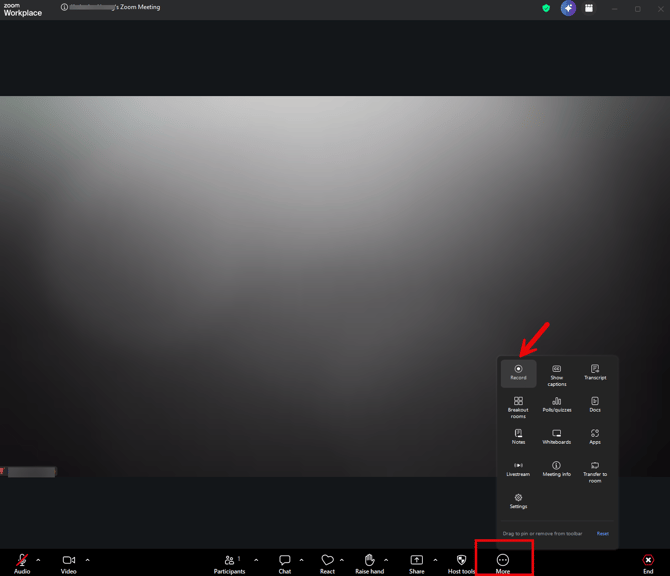
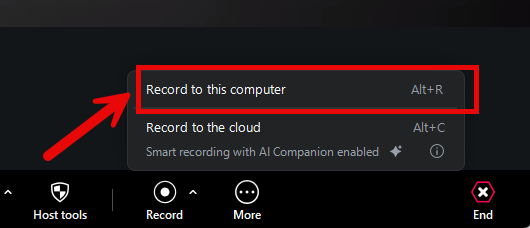
3. A box will pop up, and you need to click ‘Record to this Computer.’
This will save the recording locally to your computer. The free version of Zoom only allows you to save recordings locally on your device. Saving to the cloud requires the paid version of Zoom and is not part of these instructions. We want to save locally so we can pull the recordings again should you need them for your class.
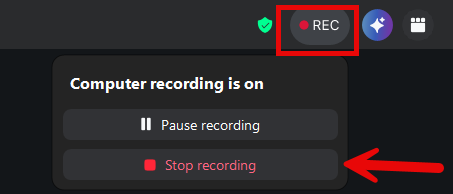
4. Once the meeting has concluded, there are three ways you can stop the recording on your call.
a) At the top, there is a red REC button. Click on this and select Stop Recording
b) At the bottom of your screen, there is another red button labeled "Record." Click this, then select Stop Recording.
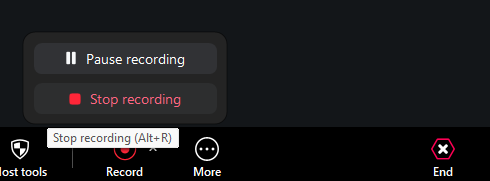
c)Alternatively, press Alt+R to stop recording.
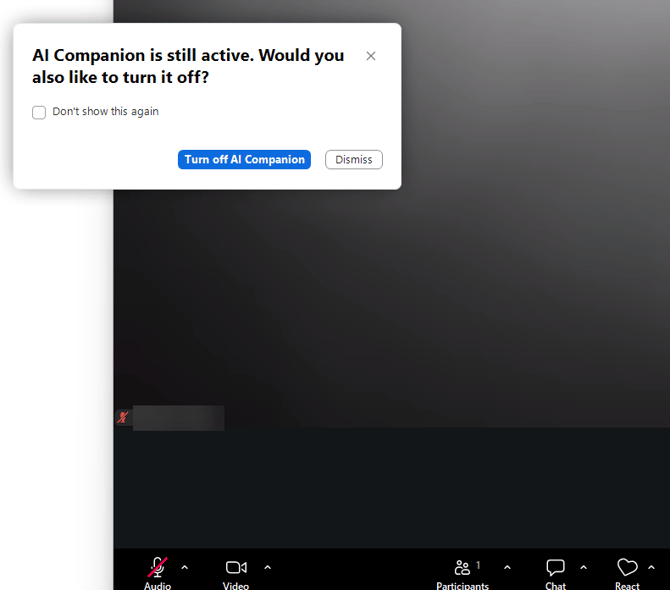
5. Once you press Stop Recording, if your AI companion is turned on, you will see this pop-up. You can select ‘Turn off’ here.
6. There are two ways it locate your Zoom Recording.
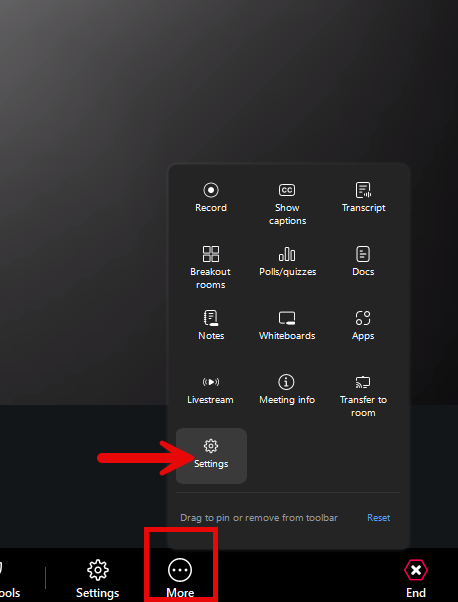
First, you can do this in your meeting by selecting the three dots button labeled ‘More’, then clicking ‘Settings’. Then click ‘Recording’.
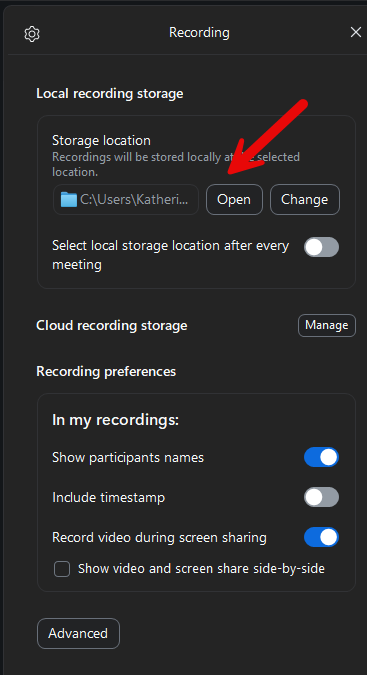
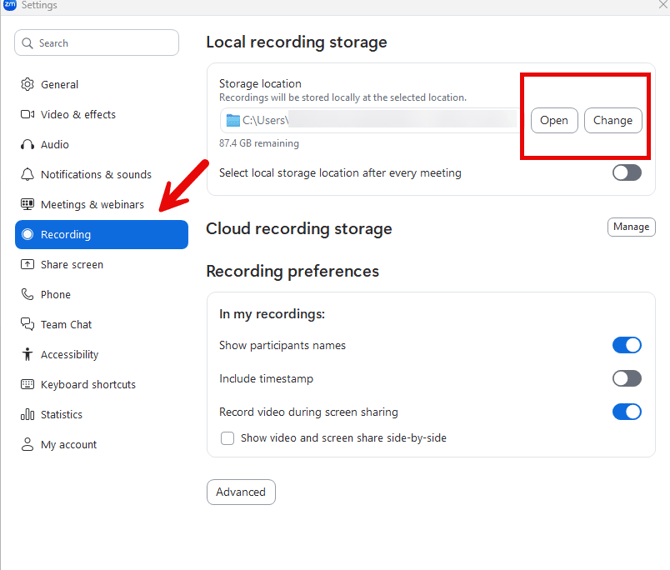
Once you click on ‘Recording’, you will see ‘Local Recording Storage’. Click Open.
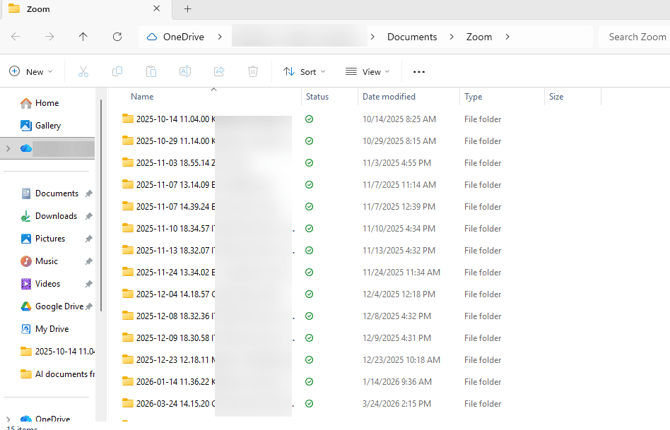
This will open File Explorer to the exact location of all Zoom Recordings on your computer.
You can also locate your Zoom Recording location by opening Settings within your Zoom Application itself.
Click your Profile at the Top Right Corner
Then Click on ‘Settings’
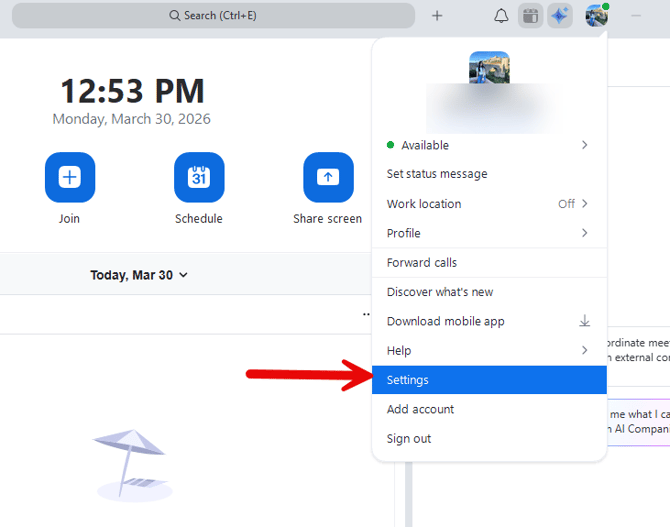
Click ‘Recording’ on the left-hand side, and at the top, you will see your Local Recording Storage. From here, you can open the recording storage location or change it if you do not like its current setting.
Please Note:
Zoom Recording locations may differ on each user's device.
It is important that if you see a pop-up for this after stopping your recording, you DO NOT stop the conversion. It will be needed to upload the MP4 file into Canvas for your Professor to view the recording for your assignment.
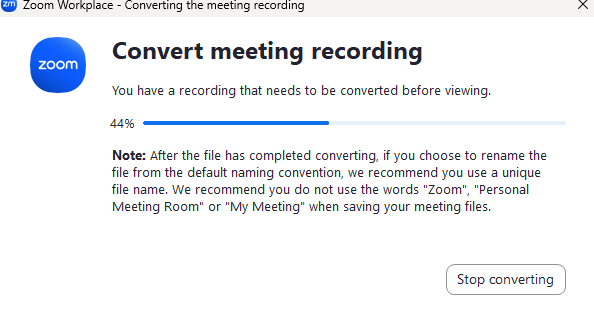
If you stop the conversion, you will need to locate the meeting recording you want to upload, then double-click it to convert it manually to MP4.
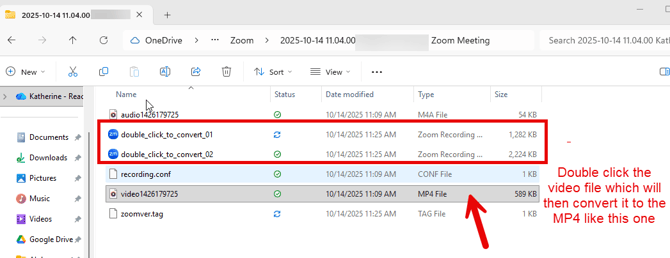
It is recommended to open the MP4 file before uploading it to Canvas to ensure it plays sound and video. If needed, record a test before the official meeting to make sure you are familiar with the setup and to troubleshoot any issues.