
1. Navigate to https://mysignins.microsoft.com/security-info
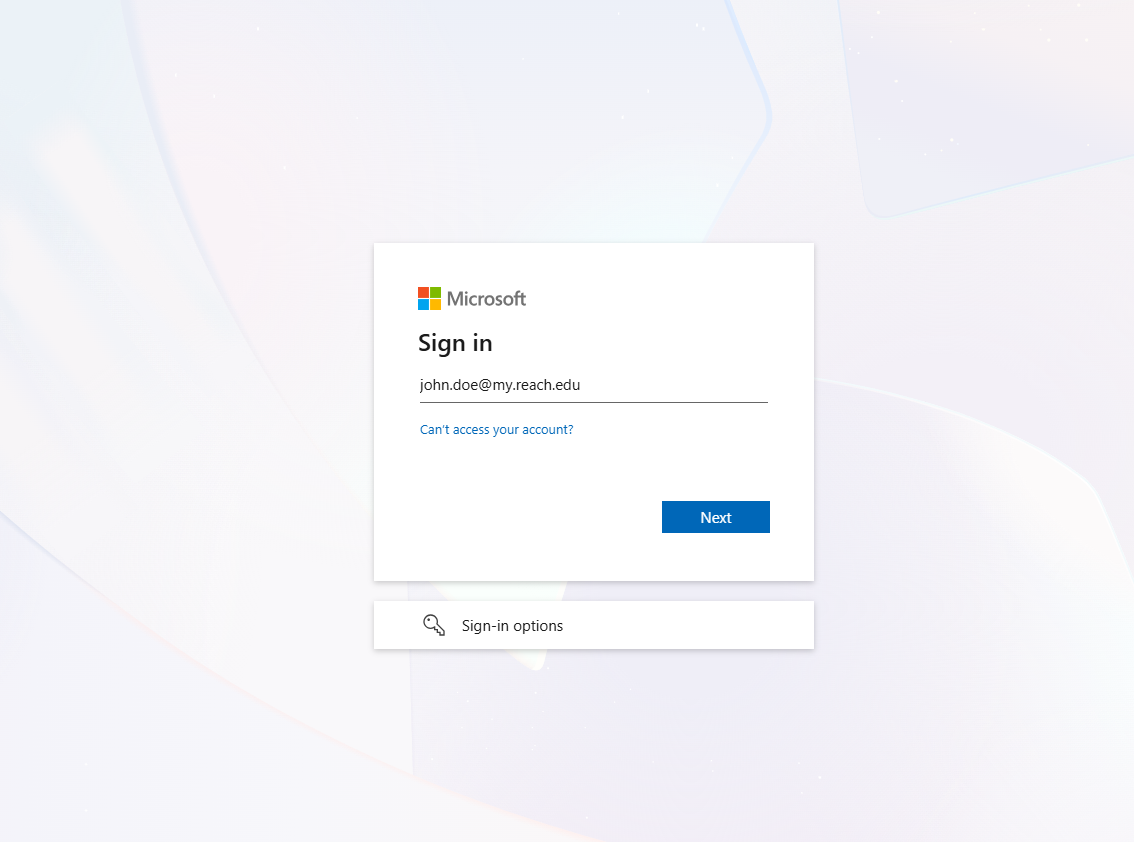
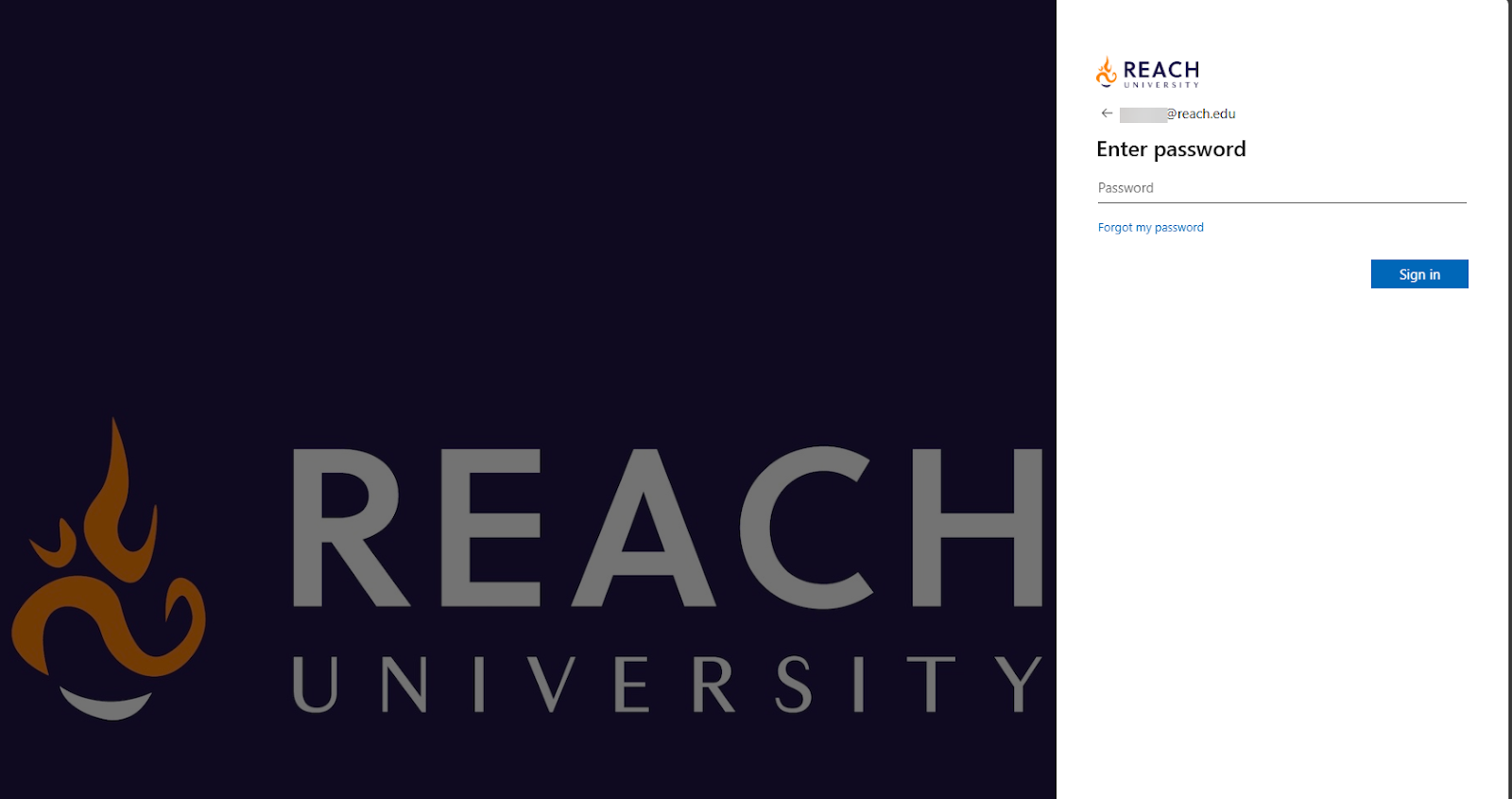
2. The screen will prompt you to put in your Reach University email and password
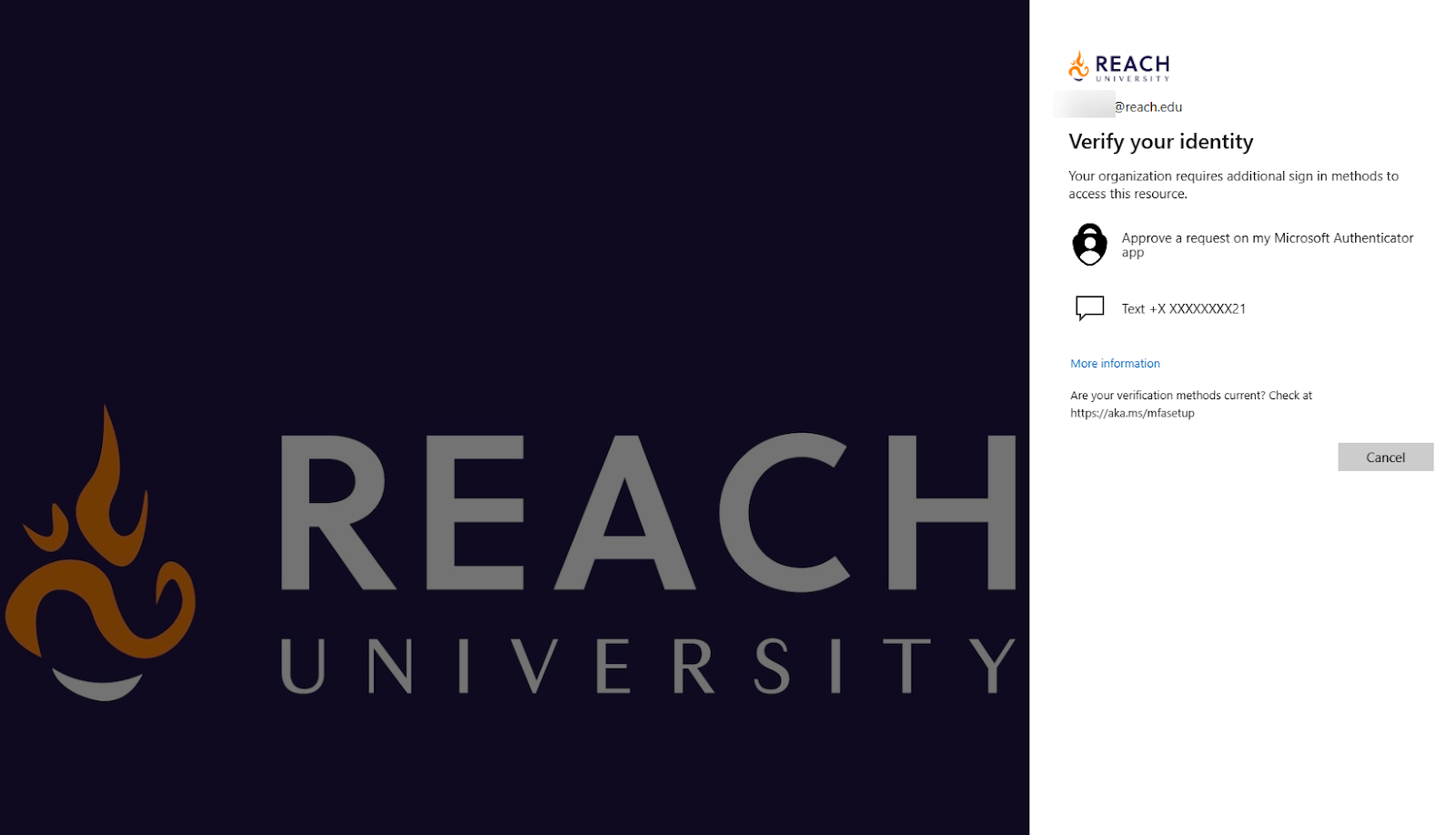
4. You will be taken to your security options for your Reach University account
5. To add any new MFA method, you will click the button for 'Add Sign-in Method.'
Please note: Do not delete the old phone before adding your new method. You will be required to authenticate to add a new method for security reasons.
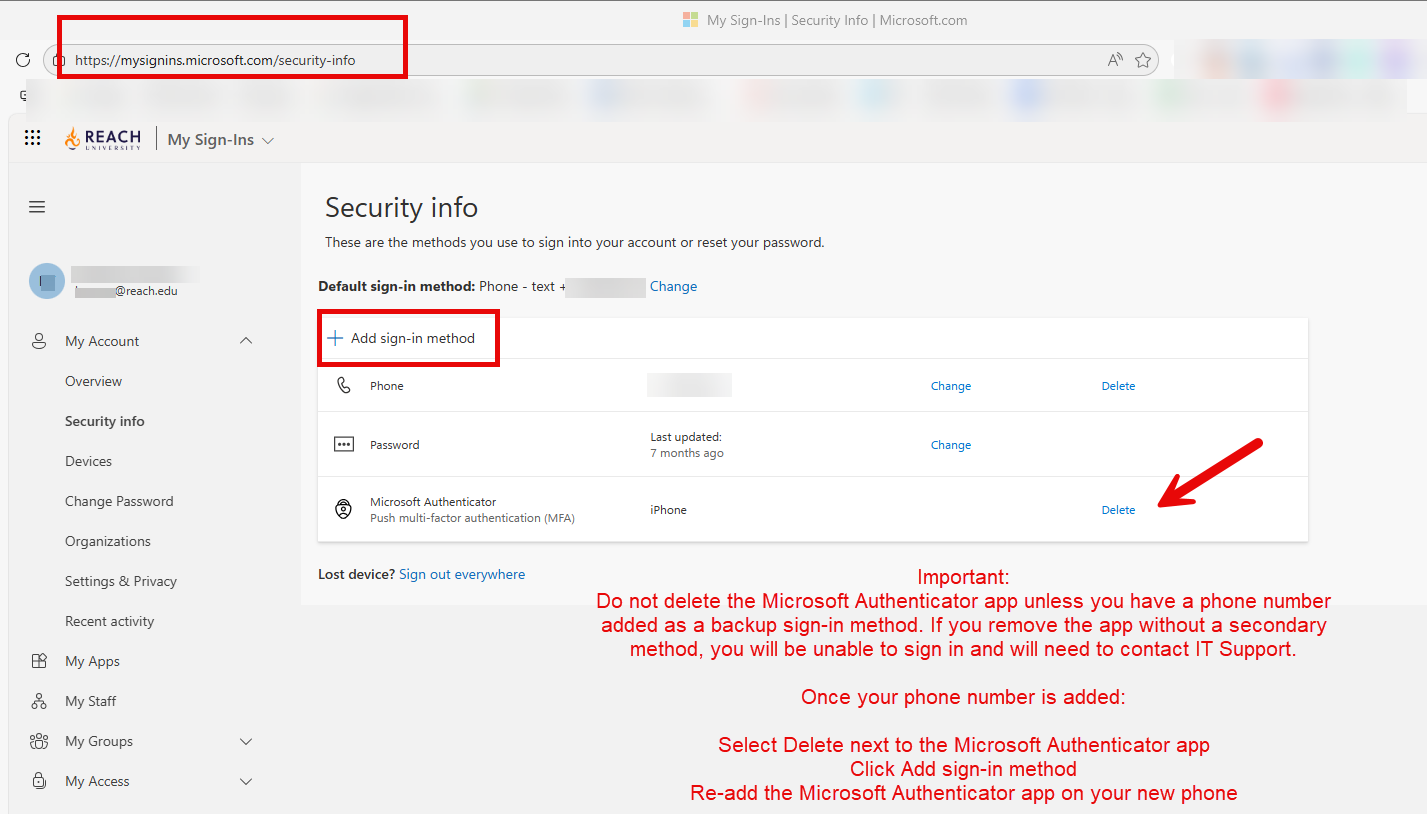
* For all Faculty and Students, at least one MFA method is required to be on file. If you want to update your Microsoft Authenticator app, you must first add your phone number as a method if it has not already been added. Then you will be able to delete the Microsoft Authentication app method and then set that up again.
These steps, if done before giving up your old phone, will bypass the need to contact IT Support to reset it for you. You may change the methods at any time if your phone number changes or you lose your phone.